Authenticator App Set up
Here’s a quick guide on how set up the Microsoft Authenticator app on IOS & Android.
-
Security Info Microsoft Edge
Section titled “Security Info ”Open up the security info page of your Microsoft account.
-
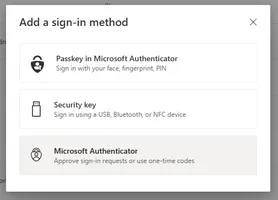
Click on Add sign-in method.

-
Choose Microsoft Authenticator
-
Installation Phone
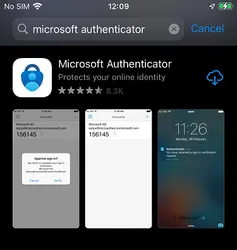
Section titled “Installation ”Navigate to the App Store and search for Microsoft Authenticator.
Navigate to the Google Play Store and search for Microsoft Authenticator.
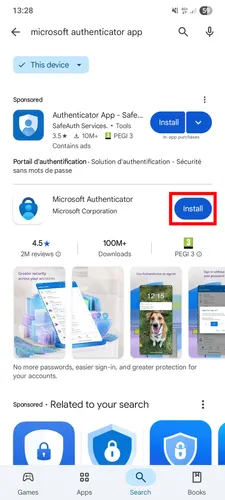
Install the app.
-
Set up Microsoft Edge
Section titled “Set up ”Click Next.

-
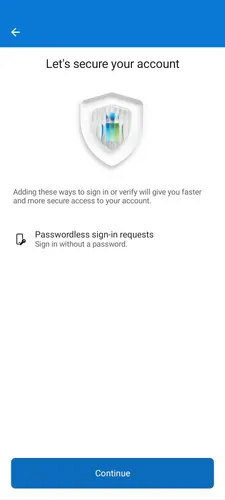
Follow the instruction in the app to finish registering the account.
-
After that, phone sign-in is enabled.

-
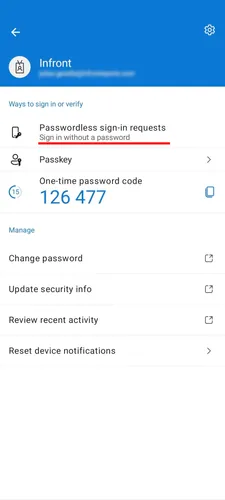
You can verify that passwordless phone sign-in is enabled by selecting your account again.
Passwordless sign-in requests is now listed in theWays to sign in or verifysection.